Data Contexts
A data context is a named storage area that components share without any of them owning the data. One component writes a value, another reads it, and neither needs a field on the form or a call to the back-end. Shesha ships several built-in contexts scoped to different lifetimes, and some components add their own.
The Built-In Contexts
Each built-in context has its own accessor in scripts. The accessor tells you the lifetime of the data as much as where to find it.
| Context | Accessor | How long the data lasts |
|---|---|---|
| Application | application.state | The whole time the application is open, across every page |
| Page | page.state | While the user stays on the current page |
| Form | form.state | While the form instance is on screen |
| Web storage | storage.local, storage.session | Set by the browser store you choose |
| Canvas | contexts.canvasContext | While the form is rendered |
All of them behave like plain objects. There is no fixed list of properties, so any property you set becomes available under that name.
Form type to use: Edit Form - or any form type, since these are available in every script.
Example - Share a value between two components on the same form:
const onChange = () => {
  form.state.calculatedTotal = form.data.quantity * form.data.unitPrice;
};
Reading it back from another component on the form:
const getText = () => {
  return `Total: ${form.state.calculatedTotal ?? 0}`;
};
A value only one form needs belongs in form.state. Putting it in application.state means it is still there when the user opens an unrelated page later, which is a source of confusing bugs. Widen the scope only when you actually need the value to survive.
Binding a Component to a Context
You do not have to write a script to put a value in a context. Most Shesha form components can bind directly to one.
Next to a component's Property Name setting there is a show binding option link. Clicking it reveals a Context selector. Pick a context there, then give a Property Name, and the component reads and writes its value in that context instead of in the form data.
This is the usual way to keep a working value off the record. A filter dropdown that narrows a table, for example, does not belong in the data you save, so bind it to the page context rather than adding a field for it.
Form Context Is Per Form Instance
Exactly one application context and one page context exist at a time. Form context is different: every form instance gets its own.
If a main form embeds two SubForms, the main form has its own form.state, and each SubForm has a separate one. Components on one SubForm cannot see the form state of the other, or of the main form.
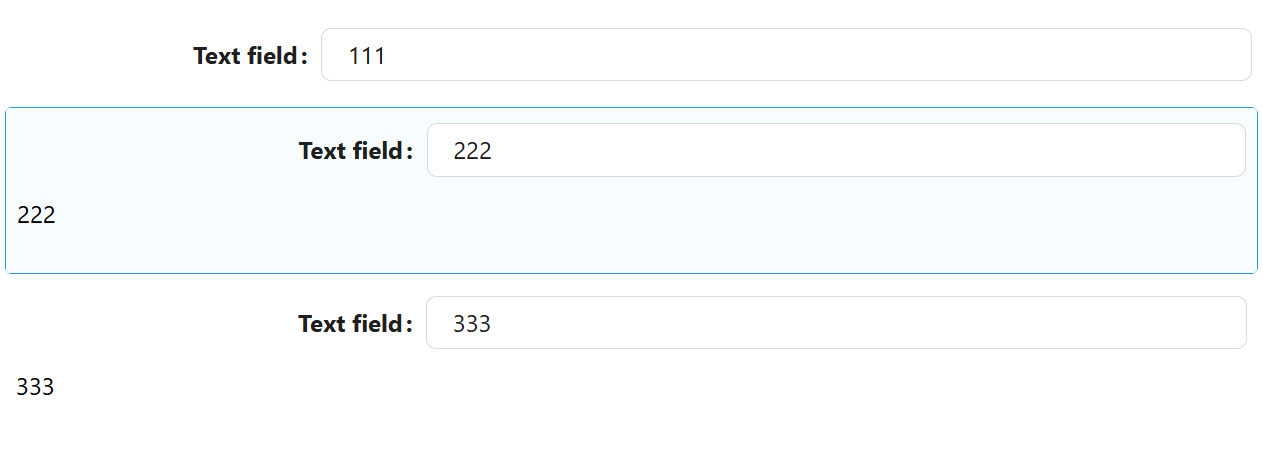
That is what makes it safe to reuse the same form as a SubForm more than once on a page. Each copy keeps its own working values even when every one of them binds to the same property name.
Canvas Context
Canvas context tells a script about the device the form is being viewed on, and about the Form Designer's canvas when the form is open in the designer. Use it to adjust a component's behaviour per device, for example hiding a wide table on a phone.
Available Data
| Property | Type | What it is |
|---|---|---|
activeDevice | DeviceTypes | The device type the application is currently rendering for |
designerDevice | DeviceTypes | The device type currently selected for preview in the Form Designer |
physicalDevice | DeviceTypes | The device type of the physical device the browser is running on |
designerWidth | string | The width of the designer area, as a CSS size such as 800px |
zoom | number | The current zoom level of the Form Designer canvas |
DeviceTypes is one of desktop, mobile, tablet, or custom.
Available Actions
| Method | What it does |
|---|---|
api.setDesignerDevice(deviceType) | Sets the device type previewed in the Form Designer |
api.setCanvasWidth(width, deviceType) | Sets the width of the designer canvas for the given device type |
api.setCanvasZoom(zoom) | Sets the zoom level of the Form Designer canvas |
Call these through the api property, for example contexts.canvasContext.api.setDesignerDevice('mobile'). Calling contexts.canvasContext.setDesignerDevice(...) directly fails, because the data properties and the actions are two separate objects merged into the context and only the actions are nested under api.
Form type to use: Edit Form - or any form type.
Example - Hide a component on mobile:
Use this in a component's Visible setting.
// Visible returns true to show the component, false to hide it.
return contexts.canvasContext.activeDevice !== 'mobile';
Component Contexts
Some components expose their own data, and in some cases an API of actions. Reach them through form.components, keyed by the component's Property Name.
Form type to use: Table / List View - use when showing multiple records.
Example - Refresh a DataTable from a button on the same form:
const onClickAsync = async () => {
  await actions.callApi.post('/api/services/app/Members/Recalculate', {});
  form.components.membersTable?.api?.refreshTable();
};
Which components expose a context, and what each one exposes, differs per component. The code editor's autocomplete lists what is available for the components actually on your form, which is the quickest way to check.
Moving From the contexts Object
Earlier versions of Shesha reached all of these through a single contexts object. It still resolves at runtime, so existing scripts keep working, but it is no longer suggested or type-checked in the editor.
| Old | Use instead |
|---|---|
contexts.appContext.x | application.state.x |
contexts.pageContext.x | page.state.x |
contexts.formContext.x | form.state.x |
contexts.webStorage.local | storage.local |
contexts.webStorage.session | storage.session |
| A component's own context | form.components.<propertyName> |